How to Run an MT5 EA on a VPS 24/7 Without It Silently Stopping (2026)
How to run an MT5 EA on a VPS 24/7: pick the right Windows VM, auto-login, keep the terminal alive through reboots, and monitor it, from someone who hosts them.
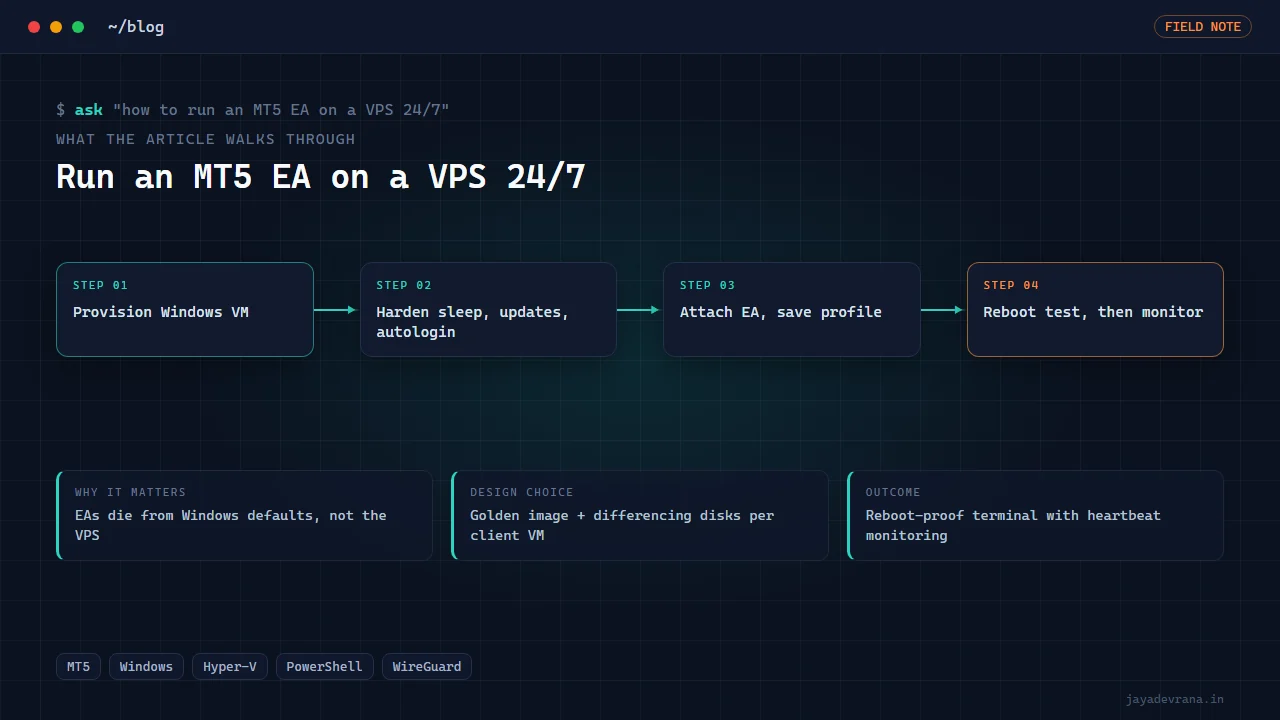
To run an MT5 EA on a VPS 24/7 you need four things working together: a Windows machine that never sleeps, a MetaTrader 5 terminal that starts itself after any reboot and logs in without a human, an Expert Advisor that is attached to a chart with AutoTrading enabled and saved in the default profile, and a way to notice within minutes when any of those three breaks. Most "my EA stopped overnight" stories come from skipping the third or fourth item, not from the VPS itself.
The order I set things up in is: provision the VM, harden Windows against sleep and surprise updates, install and configure the terminal, attach the EA and save the profile, test a forced reboot, then add monitoring. I run this exact sequence on the on-demand Windows VMs I provision with my own Hyper-V hosting stack, described further down, so what follows is what actually survives contact with a real broker session. One note: this is engineering, not financial advice, and whatever an EA does on a live account is the owner's risk.
What kind of VPS does an MT5 EA actually need?
Far less than most hosting pages suggest. A single MT5 terminal with one or two EAs is comfortable on 2 vCPU and 4 GB of RAM. The terminal idles at a few hundred megabytes; what balloons memory is many chart windows with heavy indicators, deep tick history, or the Strategy Tester. Keep the tester off your production VPS.
Three things matter more than raw specs:
- Windows, not Linux. MT5 is a Windows application. Wine setups exist, but a broker-facing production terminal should run on a proper Windows Server or Windows 10/11 Pro image so updates and drivers behave.
- Latency to the broker's trade server. Open the terminal's connection list and look at the ping column. For a trend-following or swing EA, anything under 100 ms is irrelevant; for scalpers, placing the VM in the same region as the broker's server is the only spec that counts.
- A static or stable public address. Some brokers whitelist IPs for API access, and your own remote-desktop access is easier when the address does not rotate.
Hosting on a home workstation is tempting if you own the hardware, and I did exactly that, but residential lines bring two traps covered below: carrier-grade NAT and uptime you cannot honestly promise.
How do you stop Windows from killing the terminal?
Windows is built for a person at a desk, and every default assumption works against an unattended trading terminal. These are the settings I change on every VM before MT5 is even installed:
- Power plan: set sleep and hibernate to never, and the display timeout is irrelevant on a VM but set it to never anyway so no one is confused later.
- Automatic login: configure the account to sign in on boot. MT5 runs in a user session, so a VM that boots to the lock screen is a VM with no terminal running.
- Update window: you cannot disable Windows Update forever on a supported image, so set active hours to cover the trading session and schedule restarts for the weekend when markets are closed.
- Remote desktop sessions: disconnect, never log off. Logging off ends the session and closes MT5. Train yourself to close the RDP window, not sign out.
- Firewall: leave outbound open; MT5 only needs outbound connections to the broker. You do not need to open inbound ports for the terminal itself.
A reboot test is non-negotiable. Restart the VM, reconnect, and confirm the terminal is open and connected with AutoTrading green and the EA's smiley face on the chart. Fix anything wrong now, not after a weekend gap.
How do you make MT5 start and log in automatically?
The terminal remembers the last account it was logged into and reconnects on launch, provided you ticked "save password" when logging in. That handles authentication. For the launch itself, place a shortcut to the terminal executable in the user's Startup folder, or register a scheduled task that runs at logon with the "run with highest privileges" box ticked. The scheduled-task route is more reliable because it also lets you set a restart-on-failure policy.
For the EA, the detail people miss is profiles. MT5 restores the profile that was open when it last closed. If you attached the EA, then closed the terminal cleanly, the chart and the EA come back. If the VM lost power with the chart in an unsaved state, you may boot to an empty workspace. Save the profile explicitly after attaching the EA and avoid hard power-offs from the hypervisor.
AutoTrading is a terminal-wide toggle and it also persists. The red stop sign in the toolbar is the first thing I check after any restart.
Why does an EA stop trading even when the VPS stays up?
Because the terminal being open and the EA being alive are not the same condition. The failure modes I have actually seen on hosted VMs:
- Broker session rules. My SuperTrend stop-and-reverse EA returned market-closed errors on every Monday bar until I added a session check, because the gold session reopened one minute after the bar opened. The VPS was fine; the EA needed to understand the session calendar.
- Expired investor or demo accounts. Demo accounts on many brokers expire after 30 to 90 days of inactivity. The terminal shows "invalid account" quietly in the journal.
- A terminal update that reset the profile. Rare, but the terminal does self-update, and I have seen a clean workspace afterwards.
- DLL imports and WebRequest URLs. If the EA calls out to a bridge or webhook, those permissions live in the terminal options and are not part of the EA file. Re-check them after any reinstall.
- Disk full from logs. Tick-level logging on a small system disk fills it in weeks. Keep logs on a second virtual disk or rotate them.
For EAs that rely on an external signal source, such as the TradingView-to-MT5 bridges I build, the bridge process is a second thing to keep alive; I cover the design of that in my post on a custom TradingView-to-MT5 bridge.
How do you monitor an MT5 VPS without staring at it?
Monitoring is what separates a hobby VPS from one you can leave for a two-week holiday. The layers I use, cheapest first:
- Push notifications from the EA. A one-line heartbeat every hour and an immediate message on any failed order request, sent through the terminal's built-in notification feature to the MetaTrader mobile app.
- A journal watcher. A small script on the VM that tails the terminal's journal and alerts on strings like "invalid account", "not enough money" or "market closed" appearing more than a few times.
- An external ping. Something outside the VM that confirms the VM is reachable and that the terminal process is running, so you learn about a dead host from a source that is not on the dead host.
- Daily equity snapshot. A scheduled report with balance, equity, open positions and last-trade time. A last-trade time that is three days old on an EA that trades daily is the clearest possible signal that something is wrong.
How I built this: AlgoEdge Cloud: On-Demand Windows VM Hosting with a Client Portal
The MT5 VPS question stopped being theoretical for me when I decided to resell spare capacity on my own workstation as MT4/MT5 hosting for Indian algo traders. The result is AlgoEdge Cloud, two pieces of software plus one piece of network design.
- A golden Windows image. I prepared one Windows VM exactly the way the previous sections describe: power settings fixed, auto-login ready, terminal prerequisites installed. Every client VM is a differencing disk off that image, so a new VM is created in seconds rather than by reinstalling Windows.
- VMFactory, the provisioning console. A local web console built on a Node server with zero npm dependencies, sitting on top of a PowerShell module layer that talks to Hyper-V. It clones the golden disk, generates a machine identity and credentials, and injects them as an unattend file before first boot so the VM comes up already named and logged in.
- The client portal. Also dependency-free, on Node's built-in SQLite and crypto. It handles signup, ordering a plan, manual payment confirmation, an admin "mark paid and build" action that triggers VMFactory, and a dashboard where the client sees their hostname and credentials.
- The network design. The workstation sits behind carrier-grade NAT, which means inbound traffic can never reach it and router port-forwarding is useless. So the design is a small VPS relay with a static IP, a WireGuard tunnel dialled outbound from the workstation with keepalives, and one forwarded port per VM. Clients always get a stable hostname, and the ISP rotating my address stops mattering.
- Documented traps. Three Windows issues cost real hours and are written down: a VHDX cannot live on an exFAT drive, serialising strings read from a file into the PowerShell layer hangs, and one automatic variable name is reserved and silently breaks a module.
Two design decisions are worth defending. First, zero dependencies in both the console and the portal: this stack has to keep working on a machine I do not want to babysit, and a dependency tree is a maintenance liability. Second, honesty with the owner (myself, in this case, but documented as if for a client): list-plus-margin pricing came out several times above market rates, and a residential line cannot honour the uptime a hosting page would normally advertise. Both were raised plainly rather than buried, and the business model was adjusted accordingly. The engineering works; the uptime promise is only as good as the line behind it.
FAQ
Can I run an MT5 EA on my home PC instead of a VPS?
Yes, and for testing it is the right starting point. The problems are power cuts, Windows updates restarting at bad times, and your own use of the machine competing with the terminal. If you go this route, apply every hardening step above and add the external monitoring, because nobody else is watching that box.
Does the broker's free VPS work for EAs?
The MetaQuotes-hosted VPS available inside the terminal works well for pure MQL5 EAs that do not need DLLs or external processes. It cannot run a Python bridge, a webhook listener or any companion program, so it is a poor fit for signal-driven setups.
How many EAs can one VPS run?
Several, as long as they share one terminal or you give each terminal its own install folder. Memory is the limit, not CPU. Watch for EAs with conflicting magic numbers or that both try to manage the same symbol's positions.
What happens to open positions if the VPS goes down?
Positions and pending orders live on the broker's server, not on your VM. Stop-loss and take-profit levels attached to the orders still execute. Anything the EA manages itself, such as a trailing stop computed on each tick, freezes until the terminal is back. Design EAs so a server-side stop always exists.
If you want a hardened MT5 VPS or a hosting setup like this built for your own machines, tell me about it on the contact page.
Building something in this space? I ship trading automation, Pine Script, MQL5 EAs, and full-stack tools with source and docs.
Start a project →